Forty tabs open? A calmer way to work in Chrome
Tab overload isn't a character flaw. It's a system problem. Here's the small, boring system that finally got our tab count under control.

Count your tabs. Go on. If the little icons have shrunk to the point where you can't tell them apart, this one's for you.
We know the feeling. Spend your days building browser tools and the tab bar fills up fast. At some point tabs quietly became our to-do list, our bookmarks, our reading list and our memory. All at once. None of them very well.
What follows isn't a productivity system with a name and a course attached. It's a handful of habits. They're cheap to try.
Why tabs pile up in the first place
A tab is a promise to come back later. The trouble is that a browser treats every promise the same. The invoice you must pay today sits next to an article you might read in March. Both look identical. So you keep them all, just in case.
- Fear of losing something. Closing a tab feels permanent, even when it isn't.
- No clear home for later. If there's nowhere better to put it, it stays open.
- Tabs as reminders. An open email tab nags you. That's the point, and that's the problem.
Step one: give every tab a job
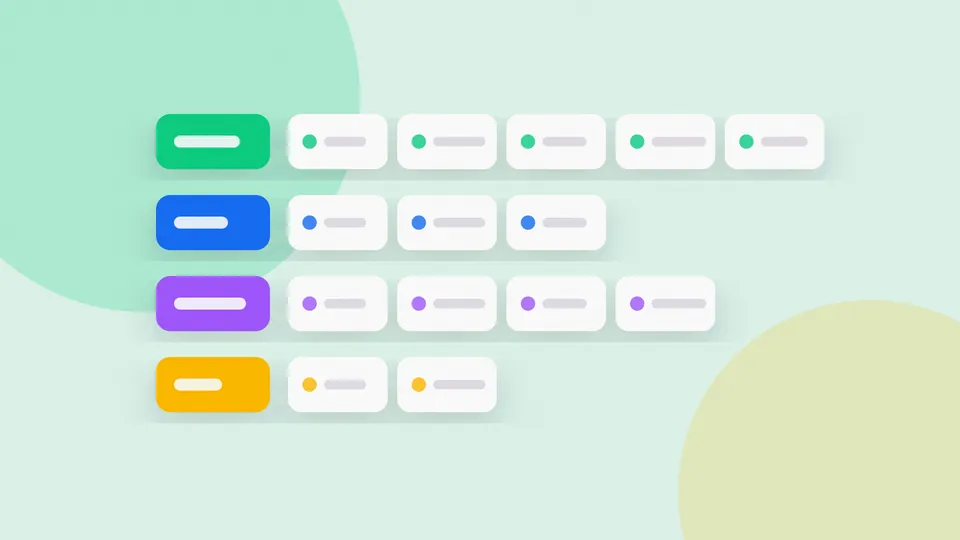
Chrome's tab groups are underrated. Right-click any tab, choose Add tab to new group, give it a name and a colour. Now your strip of tabs reads like a desk with labelled trays instead of a pile of paper.
We keep it to three or four groups a day. Something like Today, Research, Waiting on someone and Read later. Collapse the ones you're not using with a click on the group name. They stay saved, they just get out of your way.
Step two: a five minute reset
At the end of the day we spend five minutes on the tabs. Not more. The rule is simple: every tab either gets acted on, moved somewhere permanent or closed.
| If the tab is… | Move it to | Then |
|---|---|---|
| A task | Your actual to-do list | Close it |
| Something to read | A reading list or read-later app | Close it |
| Reference for a project | A saved tab group or bookmark folder | Close it |
| Done, or no longer interesting | Nowhere | Close it, guilt free |
Notice the pattern in the last column. That's deliberate.
The goal isn't zero tabs. The goal is that every open tab is something you're actually working on.
Step three: learn four shortcuts
Most of the friction around tabs is the mouse. These four shortcuts cover nearly everything. On a Mac, swap Ctrl for Cmd.
| Shortcut | What it does |
|---|---|
| Ctrl + Shift + T | Reopens the tab you just closed. Press it again to go further back. |
| Ctrl + Shift + A | Searches across every open tab by title. |
| Ctrl + 1 to 8 | Jumps to that tab. Ctrl + 9 always goes to the last one. |
| Ctrl + W | Closes the current tab. Pair it with the first shortcut and you lose your fear. |
That first one matters more than it looks. Once you trust that a closed tab can come straight back, closing tabs stops feeling risky. And Chrome's History page (Ctrl + H) keeps everything you've visited if you need to dig further.
When a page has twenty links you need
Research is where tab counts explode. You find a page with a list of resources and open them one by one with middle clicks. Twenty tabs later, you've forgotten why you started.
A link selection extension helps here. Our Linkclump lets you drag a box around a group of links to open them in a new window or copy them as a list. Copying is the underrated part. Paste the list into a note, open three, and keep the rest for later without a single extra tab.
A note on memory
Modern Chrome puts inactive tabs to sleep to save memory, which helps. It doesn't help your attention, though. A sleeping tab still sits there asking to be dealt with. The system above is about your head, not your RAM.
None of this is clever. That's why it works. Give it a week and count your tabs again.
Written by
Founder, Modulus Tools
Usama builds easy to use AI tools, Chrome extensions and WordPress plugins at Modulus Tools, and writes about what he learns shipping them: browser privacy, WordPress SEO and the small habits that make work easier.