What it really takes to build and publish a Chrome extension
From an empty folder to a live listing in the Chrome Web Store. The steps, the costs and the parts nobody warns you about.

A small extension can be a few dozen lines of JavaScript. You can write one in an evening. Getting it published is a different story, and it's rarely the code that slows you down. It's everything around it.
This is the guide we wish we'd had. It covers the building, the publishing and the bits in between.
The pieces of an extension
An extension is just a folder of files that Chrome knows how to load. At minimum you need one file: manifest.json. Everything else depends on what your extension does.
| Part | What it does | When you need it |
|---|---|---|
| manifest.json | Describes the extension, its permissions and its files | Always |
| Service worker | Runs in the background and reacts to browser events | Menus, alarms, messages between parts |
| Content script | Runs inside web pages and can read or change them | Anything that touches a page |
| Popup | The small window when you click the toolbar icon | Quick settings or actions |
| Options page | A full settings page | More than a couple of settings |
Start with the manifest
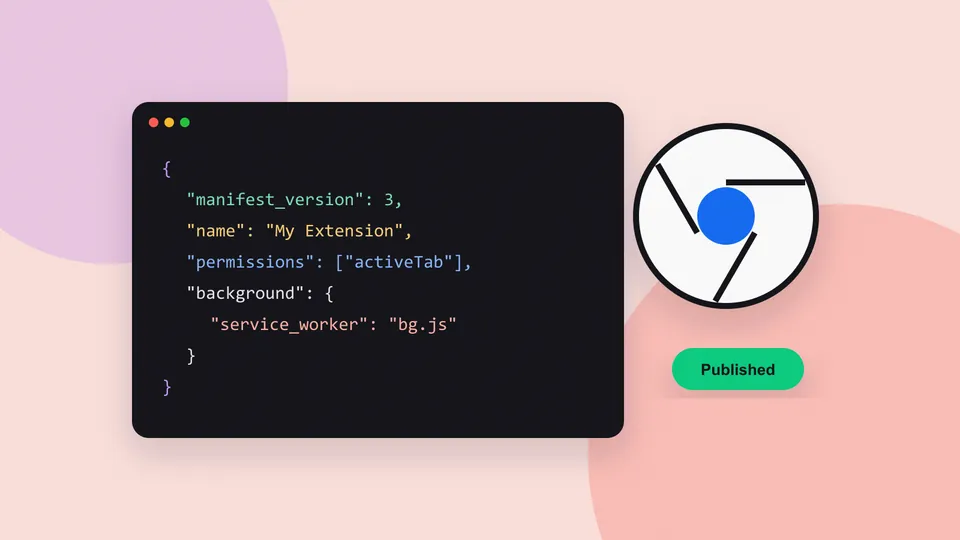
Chrome extensions now use Manifest V3. Older tutorials still show version 2, which Chrome no longer accepts. Here's a small, real starting point:
{
  "manifest_version": 3,
  "name": "Word Counter",
  "version": "1.0.0",
  "description": "Shows the word count of any text you select.",
  "permissions": ["activeTab", "scripting"],
  "action": { "default_title": "Count selected words" },
  "background": { "service_worker": "background.js" },
  "icons": { "128": "icon-128.png" }
}
Notice the permissions. activeTab gives temporary access to the current tab only when the user clicks your icon. That's far less scary for users than asking to read every website, and it's easier to get through review.
Load it and test it
- Open
chrome://extensionsand switch on Developer mode in the top corner. - Click Load unpacked and choose your extension folder.
- Make a change, then press the reload icon on your extension's card to pick it up.
- Click Inspect views: service worker to open DevTools for the background code.
One thing trips up almost everyone. In Manifest V3 the service worker goes to sleep when it's idle. Any variable you stored in memory disappears. Save anything you need to keep with chrome.storage instead.
Publishing on the Chrome Web Store
To publish you need a Chrome Web Store developer account. There's a one-time registration fee of five US dollars. Then you zip your folder and upload it through the developer dashboard.
The upload is the easy part. The listing is where the time goes. You'll need:
- A clear name and a short description. Keywords help people find you, but stuffing them hurts.
- At least one screenshot at 1280 × 800 or 640 × 400.
- A 128 × 128 icon, plus a small promo tile if you want to be featured.
- A privacy policy link if you handle any user data at all.
- A justification for each permission, written in plain language.
Write your permission justifications for a tired reviewer who has never heard of you. Be short and specific.
Review takes longer than you expect
Simple extensions with narrow permissions often get approved within a few days. Anything that asks for broad host access can take longer. Rejections happen, usually with a short reason. Read it carefully, fix exactly that, and resubmit.
Common reasons we've seen: permissions that aren't used, a description that doesn't match what the extension does, missing privacy disclosures, and store images that contain promotional claims like best or #1.
After launch
Shipping version 1.0 is the start. Chrome changes. Websites your content script relies on change their layout. Users find edge cases you never imagined. Budget time every month for small fixes, and answer reviews. People forgive bugs when they can see someone is listening.
Got an idea but no time to build it? That's literally what we do for clients. And if you've shipped your own, write about it for us.
A one-time five dollar registration fee for the developer account. Publishing extensions after that is free.
No. Plain HTML, CSS and JavaScript work perfectly. Frameworks help for complex popups but add build steps.
The Chrome Web Store no longer handles payments, so paid features need your own licensing or payment system.
Written by
Founder, Modulus Tools
Usama builds easy to use AI tools, Chrome extensions and WordPress plugins at Modulus Tools, and writes about what he learns shipping them: browser privacy, WordPress SEO and the small habits that make work easier.